> ## Documentation Index
> Fetch the complete documentation index at: https://docs.replit.com/llms.txt
> Use this file to discover all available pages before exploring further.
# Design your app
> Use Design mode to shape how your app looks, screen by screen.
export const AiPrompt = ({children}) => {
return
{children}
;
};
export const designPrompt = "Create five different designs for the game menu, where players choose between Blocks, Snake, Racer, and Pinball, and see the top scores for each.";
How your app looks is as much a part of it as what it does. PixelGames is a Game Boy on a
phone: the cream shell, the olive-green screen, and the chunky buttons are the whole point.
A generic app layout would lose it.
Switch to Design mode on the toggle at the top left of your workspace:
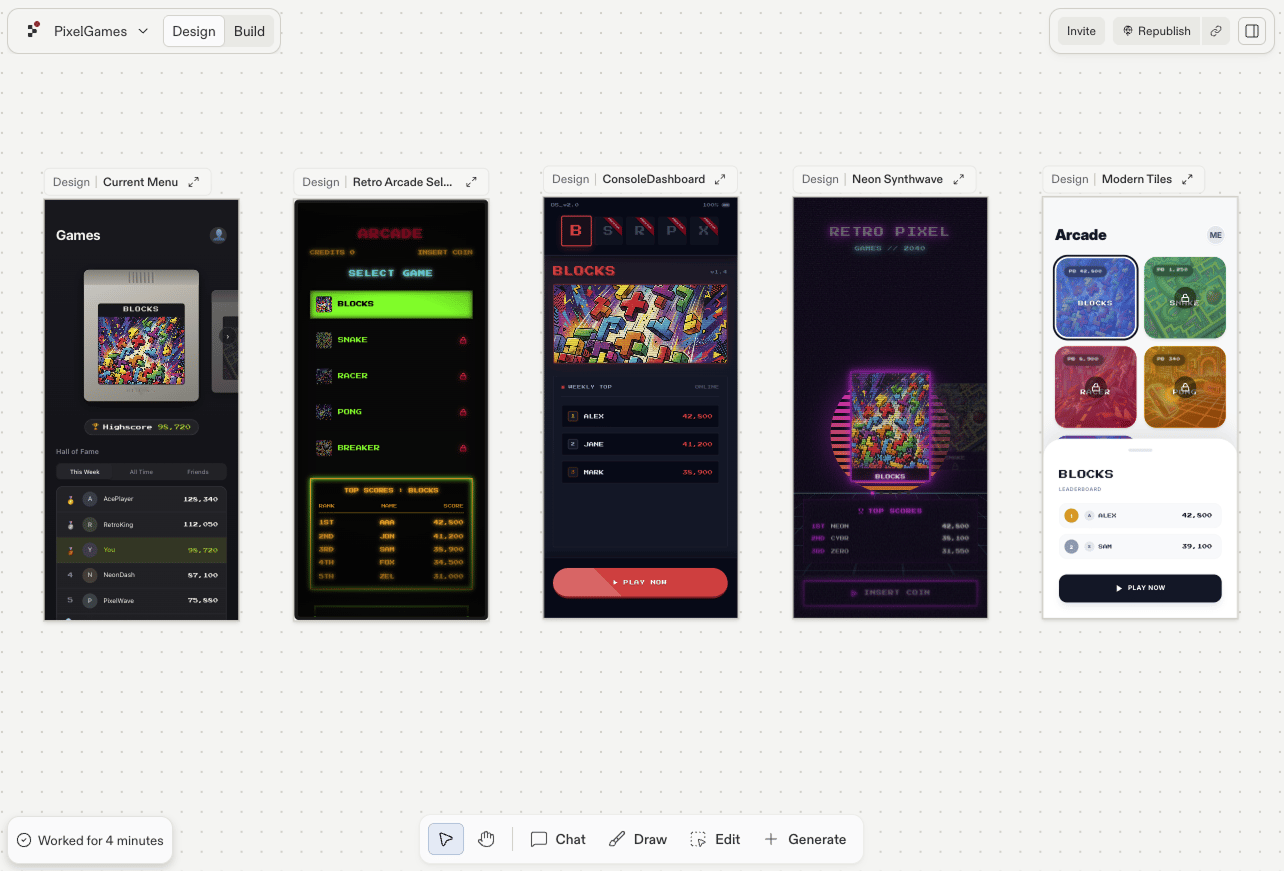 Describe the result and Agent handles the rest. Ask for several versions at once to find a direction.
{designPrompt}
Agent lays them out side by side on the canvas, so you judge them as whole screens rather
than one at a time.
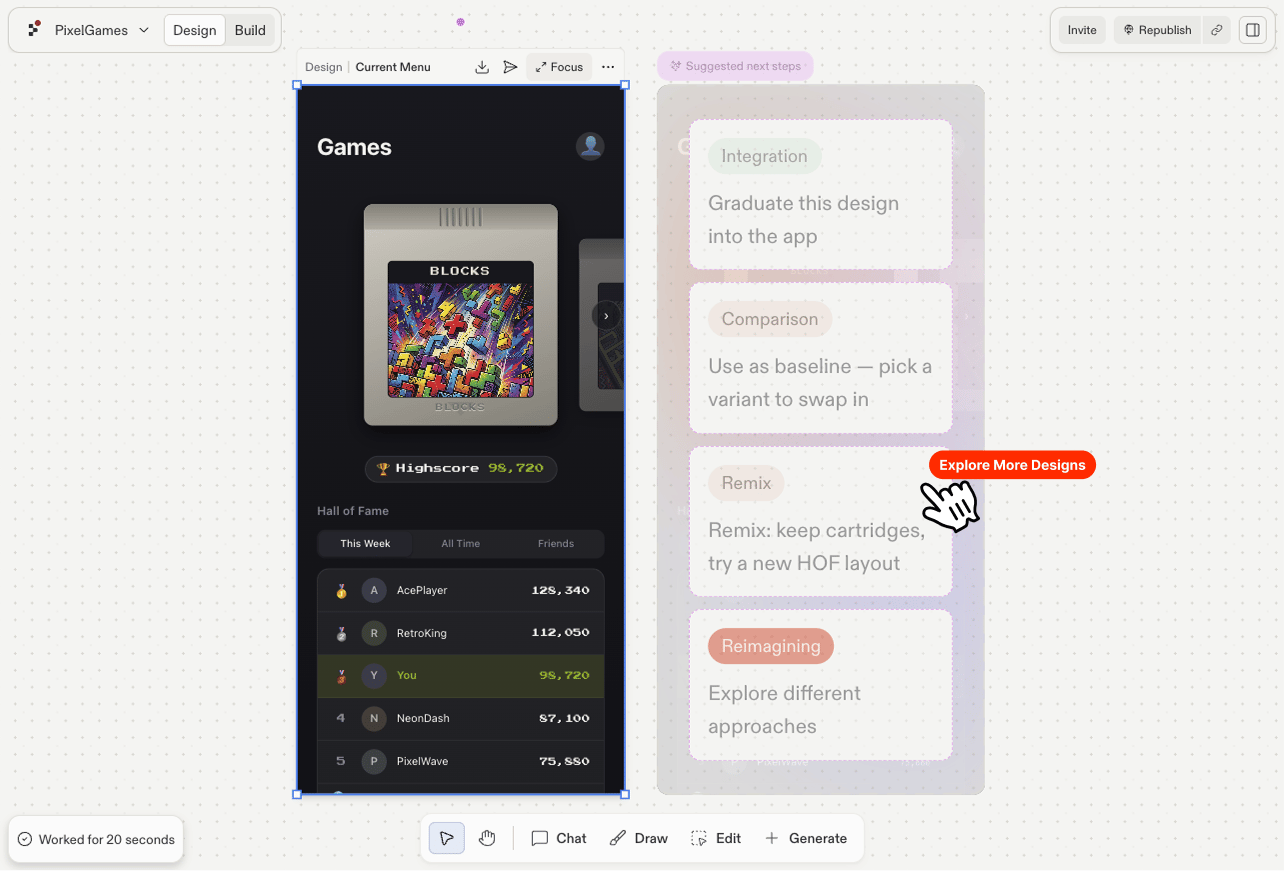
Select a design, then use the suggestions that appear next to it to try other variations.
Describe the result and Agent handles the rest. Ask for several versions at once to find a direction.
{designPrompt}
Agent lays them out side by side on the canvas, so you judge them as whole screens rather
than one at a time.
Select a design, then use the suggestions that appear next to it to try other variations.
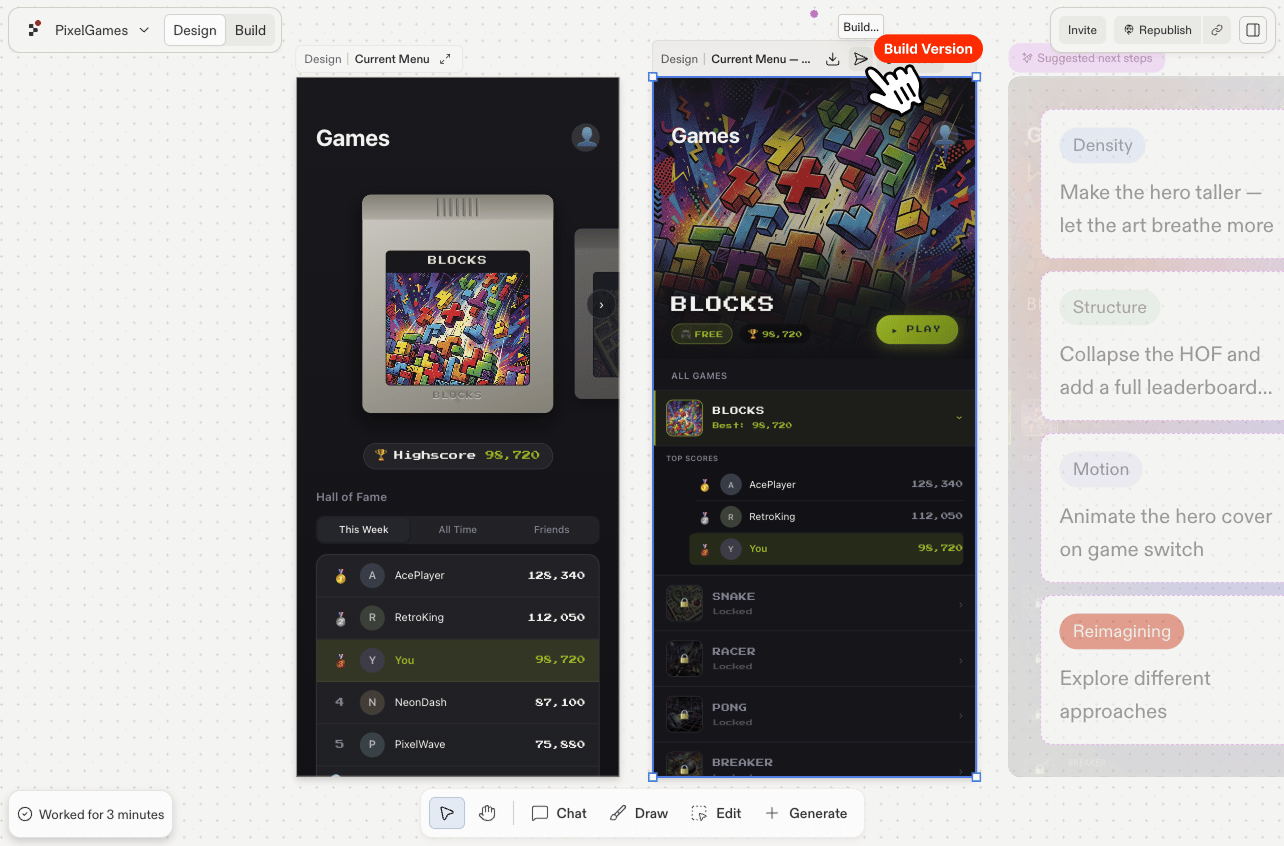
 Once a version is right, click the send icon in the toolbar above it. Agent takes that
design off the canvas and builds it as a real screen in your app.
Once a version is right, click the send icon in the toolbar above it. Agent takes that
design off the canvas and builds it as a real screen in your app.
 ## Troubleshooting
* **The change went further than you wanted:** ask Agent to revert it and describe a smaller
change, one screen or one element at a time.
* **It looks right in preview, wrong on a phone:** name the device and what you saw, safe
area and screen size handling are the usual causes.
* **A change keeps getting undone:** the same value may be set in more than one place, ask
Agent where the styling for that screen actually lives.
## What's next
Design the icon players tap on their home screen.
Pair a custom look with native alerts and menus.
## Related
* [Generate App Store screenshots](/build/mobile-store-screenshots)
* [Preview and test on your phone](/build/mobile-preview-testing)
## Troubleshooting
* **The change went further than you wanted:** ask Agent to revert it and describe a smaller
change, one screen or one element at a time.
* **It looks right in preview, wrong on a phone:** name the device and what you saw, safe
area and screen size handling are the usual causes.
* **A change keeps getting undone:** the same value may be set in more than one place, ask
Agent where the styling for that screen actually lives.
## What's next
Design the icon players tap on their home screen.
Pair a custom look with native alerts and menus.
## Related
* [Generate App Store screenshots](/build/mobile-store-screenshots)
* [Preview and test on your phone](/build/mobile-preview-testing)