> ## Documentation Index
> Fetch the complete documentation index at: https://docs.replit.com/llms.txt
> Use this file to discover all available pages before exploring further.
# Store images in your mobile app
> Save profile photos and other images to App Storage, linked to each player.
export const AiPrompt = ({children}) => {
return
{children}
;
};
export const profileImagesPrompt = "Store the profile photos players take in App Storage, linked to their account.";
PixelGames needs somewhere to keep the photos players take. This guide assumes players can
already [sign in](/build/mobile-login), storage relies on knowing who's uploading.
{profileImagesPrompt}
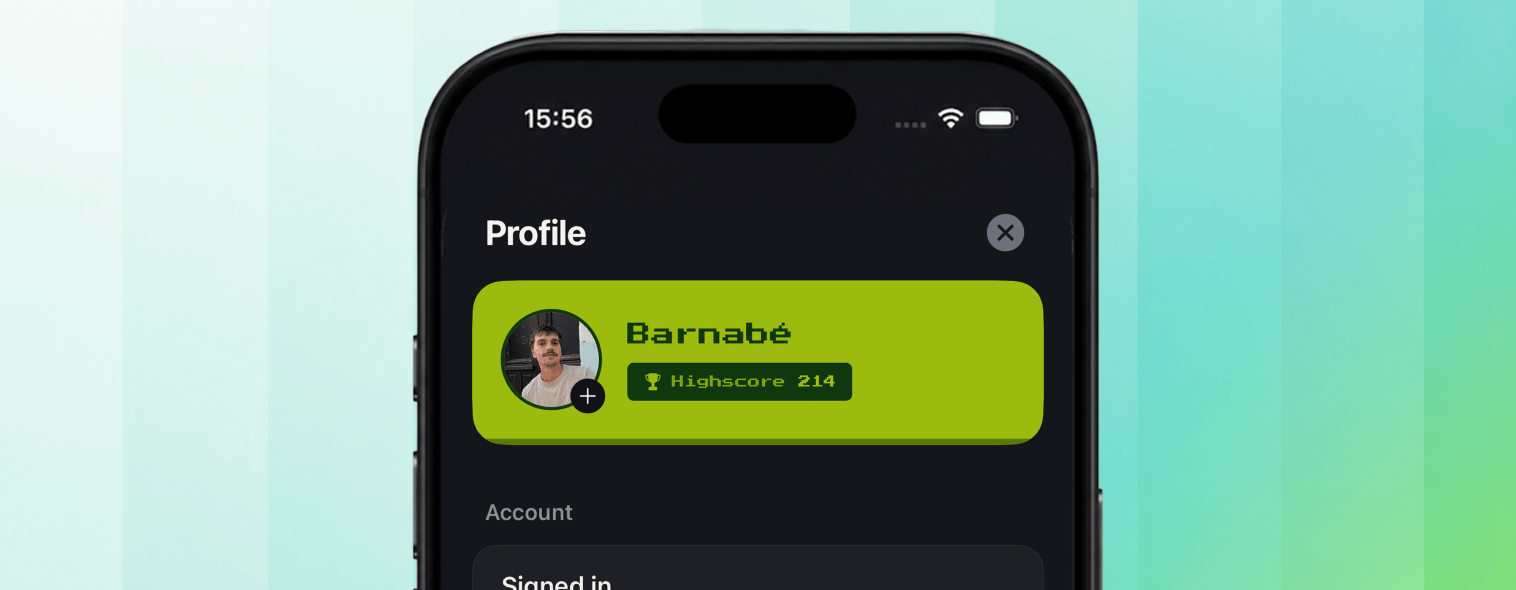
Agent wires up [App Storage](/features/data-and-storage/object-storage) and links each upload to
the signed-in player. PixelGames can then show a real profile: their uploaded photo next to their
name.
 ## Test it
1. Sign in to PixelGames with an existing account.
2. Take or choose a profile photo and upload it.
3. Close and reopen the app, confirm the photo is still there.
4. Sign in from a second phone with the same account and confirm you see the same photo.
## Troubleshooting
* **Signed in but the photo doesn't appear:** the app is likely pointed at a different storage
or auth instance than expected. Ask Agent to check the connection.
* **Upload fails:** confirm the app requested camera and storage permissions before the upload.
## What's next
Move from Expo Go to a dev build for full native access.
Submit PixelGames for review.
## Related
* [Add login](/build/mobile-login)
* [Use the camera](/build/mobile-camera)
* [Add payments to PixelGames](/build/mobile-payments)
## Test it
1. Sign in to PixelGames with an existing account.
2. Take or choose a profile photo and upload it.
3. Close and reopen the app, confirm the photo is still there.
4. Sign in from a second phone with the same account and confirm you see the same photo.
## Troubleshooting
* **Signed in but the photo doesn't appear:** the app is likely pointed at a different storage
or auth instance than expected. Ask Agent to check the connection.
* **Upload fails:** confirm the app requested camera and storage permissions before the upload.
## What's next
Move from Expo Go to a dev build for full native access.
Submit PixelGames for review.
## Related
* [Add login](/build/mobile-login)
* [Use the camera](/build/mobile-camera)
* [Add payments to PixelGames](/build/mobile-payments)