> ## Documentation Index
> Fetch the complete documentation index at: https://docs.replit.com/llms.txt
> Use this file to discover all available pages before exploring further.
# Generate App Store screenshots
> Use Replit's built-in image generation to create PixelGames' store screenshots.
export const AiPrompt = ({children}) => {
return
{children}
;
};
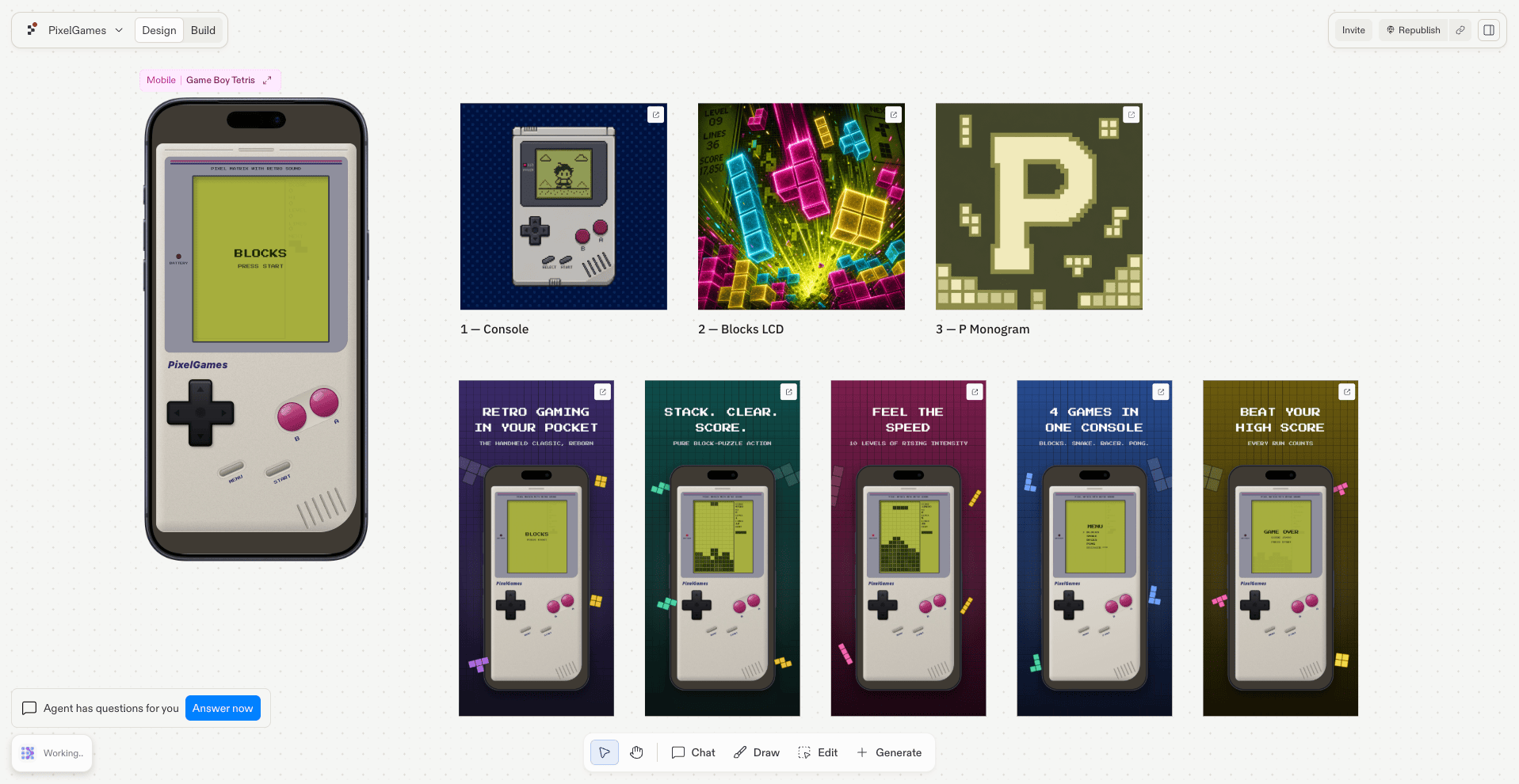
export const appStoreScreenshotsPrompt = "Create 5 beautiful, engaging App Store screenshots at 1284x2778 px that make users want to download the app.";
export const featureGraphicPrompt = "Generate a 1024x500 feature graphic for PixelGames' Google Play listing, using the same Game Boy theme as the app icon.";
Both stores also require screenshots, and Google Play a feature graphic, before they'll accept
a submission. Replit can turn real screenshots of PixelGames into polished marketing images
directly.
## What each store needs
* **App Store:** at least one screenshot at **1284×2778 px**, the 6.5" iPhone size.
* **Google Play:** at least two phone screenshots, plus a 1024×500 feature graphic shown at
the top of the listing.
## Generate marketing screenshots
{appStoreScreenshotsPrompt}
 ## Generate a feature graphic (Google Play)
{featureGraphicPrompt}
## What's next
Create the icon each store needs.
Use these assets in the Play Console listing.
## Related
* [Preview and test on your phone](/build/mobile-preview-testing)
## Generate a feature graphic (Google Play)
{featureGraphicPrompt}
## What's next
Create the icon each store needs.
Use these assets in the Play Console listing.
## Related
* [Preview and test on your phone](/build/mobile-preview-testing)