

Overview
If your Salesforce connector stops working and you see a “Connection Expired” error, it usually means your Salesforce organization’s refresh token policy is configured to expire tokens after a set period. When this happens, Replit can no longer authenticate with Salesforce on your behalf, and the connection must be re-authorized. This guide walks you through updating your Salesforce Connected App settings so the refresh token remains valid until it is explicitly revoked.Troubleshooting steps
Step 1: Open your Salesforce Connected App settings
1
Log in to Salesforce
Log in to your Salesforce organization as an administrator.
2
Navigate to Connected Apps
Go to Setup > Apps > Connected Apps > Manage Connected Apps.
3
Find the Replit app
Locate the Replit Connected App in the list and select it.
4
Edit policies
Select Edit Policies to open the policy configuration page.
Step 2: Update the refresh token policy
The default Salesforce refresh token policy may expire tokens after a set number of days or after a period of inactivity. To prevent connection expiration, change the policy to keep tokens valid indefinitely.1
Find the Refresh Token Policy setting
On the Connected App Edit page, locate the Refresh Token Policy section under OAuth Policies.
2
Select 'Refresh token is valid until revoked'
Change the policy to Refresh token is valid until revoked. This ensures the token does not expire automatically.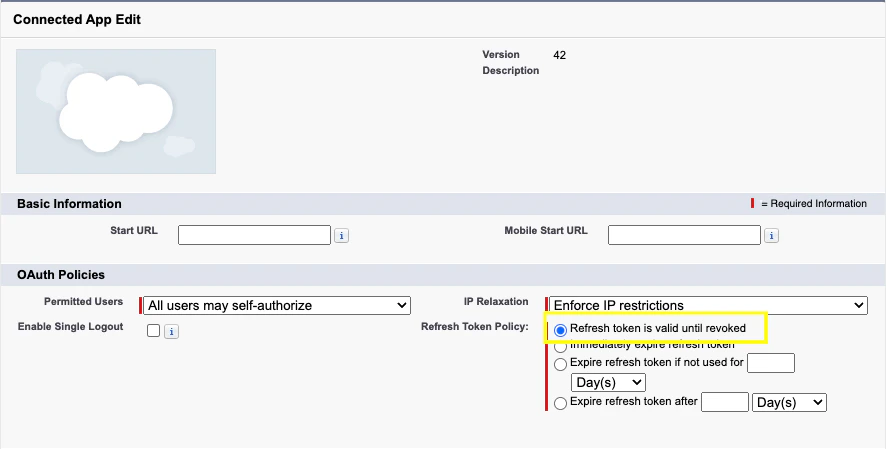
3
Save your changes
Select Save to apply the updated policy.
Step 3: Reconnect Salesforce in Replit
After updating the refresh token policy, reconnect the Salesforce connector in Replit.1
Open the Project Editor
Navigate to your app in the Project Editor.
2
Go to Connectors
Open the Connectors panel in the sidebar.
3
Reconnect Salesforce
Select Reconnect on the expired Salesforce connection. Complete the OAuth authorization flow when prompted.
Still seeing errors?
If you have updated the refresh token policy and the connection still expires:- Check other token policy options: Make sure none of the alternative expiration options (such as “Expire refresh token if not used for” or “Expire refresh token after”) are selected.
- Verify IP Relaxation settings: If your Salesforce org enforces IP restrictions, the IP Relaxation setting on the Connected App may block requests from Replit’s servers. Consider setting it to Relax IP restrictions if appropriate for your security requirements.
- Review login history: In Salesforce, check Setup > Login History for any failed authentication attempts related to Replit.
- Contact Replit support: If the issue is not on the Salesforce side, reach out to Replit support for help.
Related documentation
- Connectors overview — Learn about all integration types, including Salesforce connectors
- Managing your connectors — Admin setup for Workspace and organization connectors
- Salesforce Help: Manage Connected Apps — Salesforce’s official guide to managing Connected App policies