

Intelligent model routing
Intelligent model routing chooses an appropriate model for each task, balancing quality and cost. When you see Auto in the product, Replit is performing intelligent model routing. Intelligent model routing considers the work you request and its complexity. A focused request can use a lower-cost model, while complex work may need a more capable model. Replit can select a different model as the task changes.Free Mode always uses intelligent model routing. Builders in Free Mode cannot
use the Model selector or choose a model manually.
Choose a model manually
Builders on Core and Pro can choose an available model in Power Mode or Max Mode.- In the prompt box, select Agent Mode. The menu shows the available modes: Free, Power, and Max.
- Select Power or Max, then find the Primary model section.
- Open the primary model menu, then choose a model from the list.
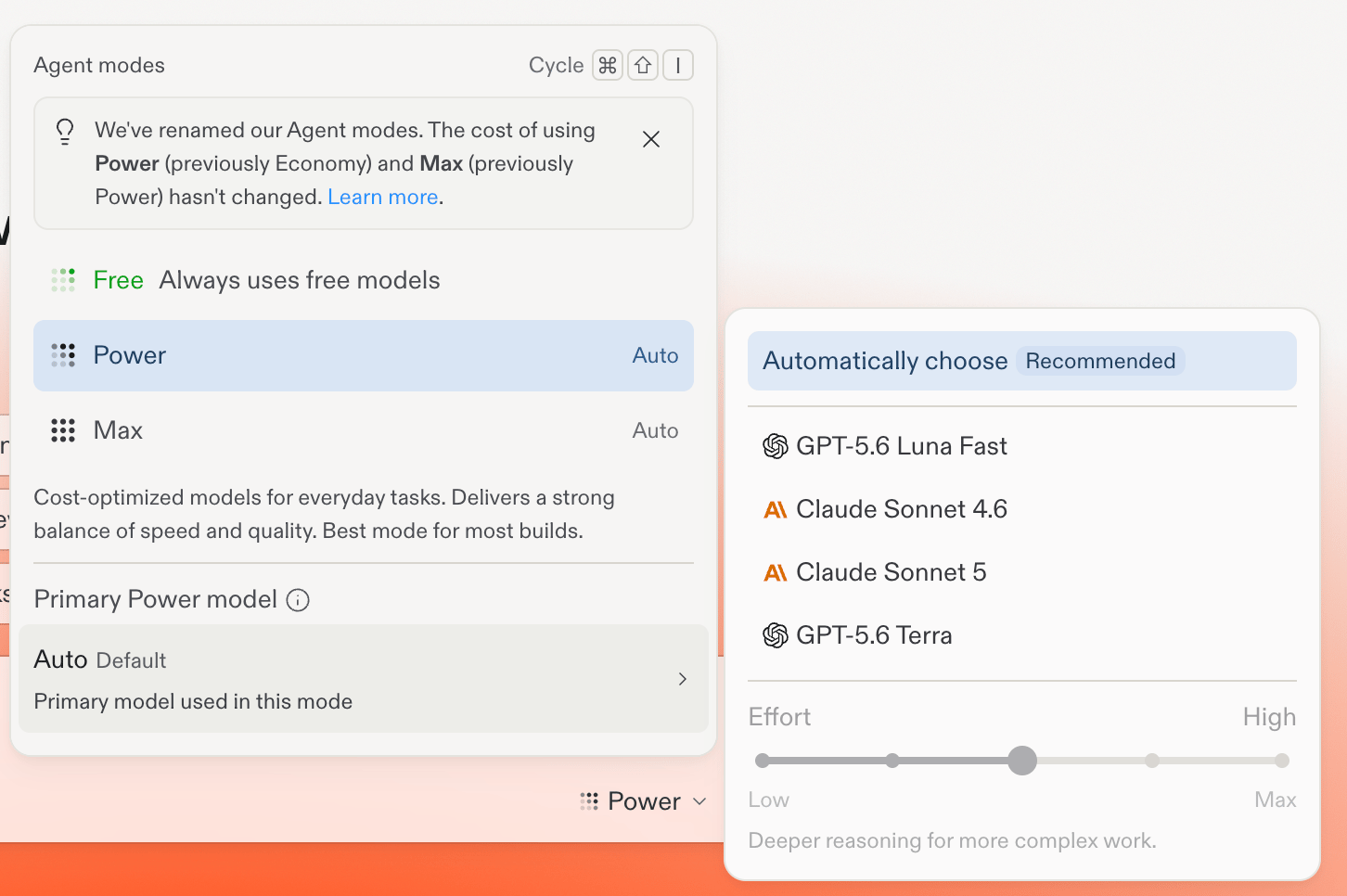
Power Mode selected in the Agent modes popover, with the Primary model list and Effort slider.
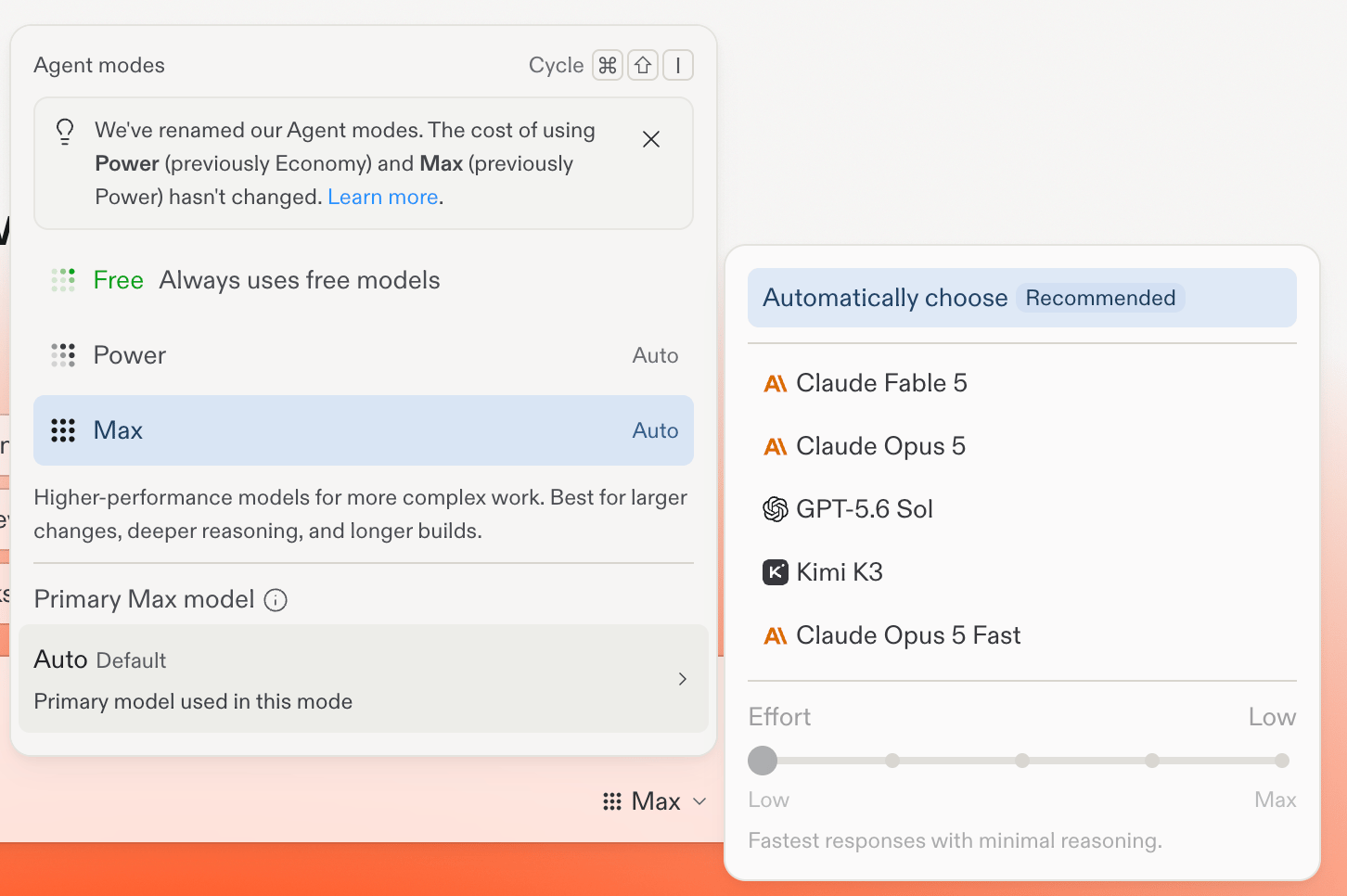
Max Mode selected, showing the Max-only model list, including Kimi K3.
Models by mode
The built-in catalog maps selectable models to Power Mode and Max Mode as follows:Free Mode does not have a selectable model list. The list in your Model
selector is the source of truth for your account. Model selection is rolling
out, and the available models can vary by rollout, organization settings, and
authorization. The Fast model variants require a Pro or Enterprise plan.
If you don’t see Primary model, the Model selector isn’t available for
your account yet.
Effort
Effort is a per-model control, not a separate mode. It sets how much reasoning the selected model spends on each response, from Low to Max. Each model shows its recommended setting, and you can raise it only when a task calls for it.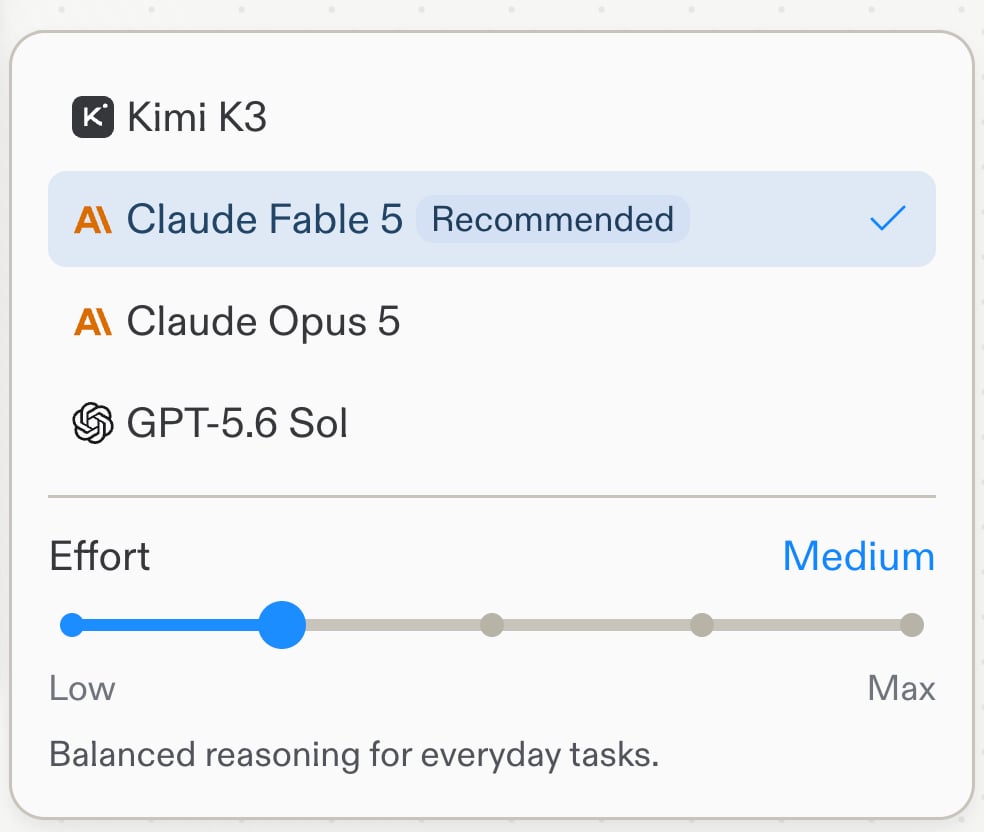
The Effort slider below the model list, set to Medium.
At higher Effort, Agent performs deeper, more deliberate reasoning and invokes its most capable frontier models, improving outcomes on the most complex tasks. Agent applies that extra power selectively. It routes to the more capable models only when a request is genuinely hard, not on every run.
Compare models
Compare models runs your next prompt across several models at once, so you can judge results side by side instead of guessing which model fits. It’s in beta. To turn it on, expand Advanced settings at the bottom of the Agent modes popover and switch on Compare models.Comparing models is only supported with Chat.
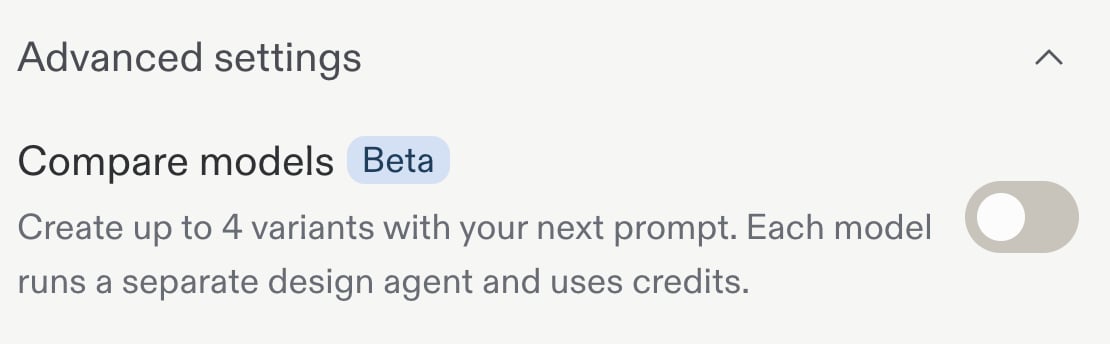
The Compare models toggle under Advanced settings.
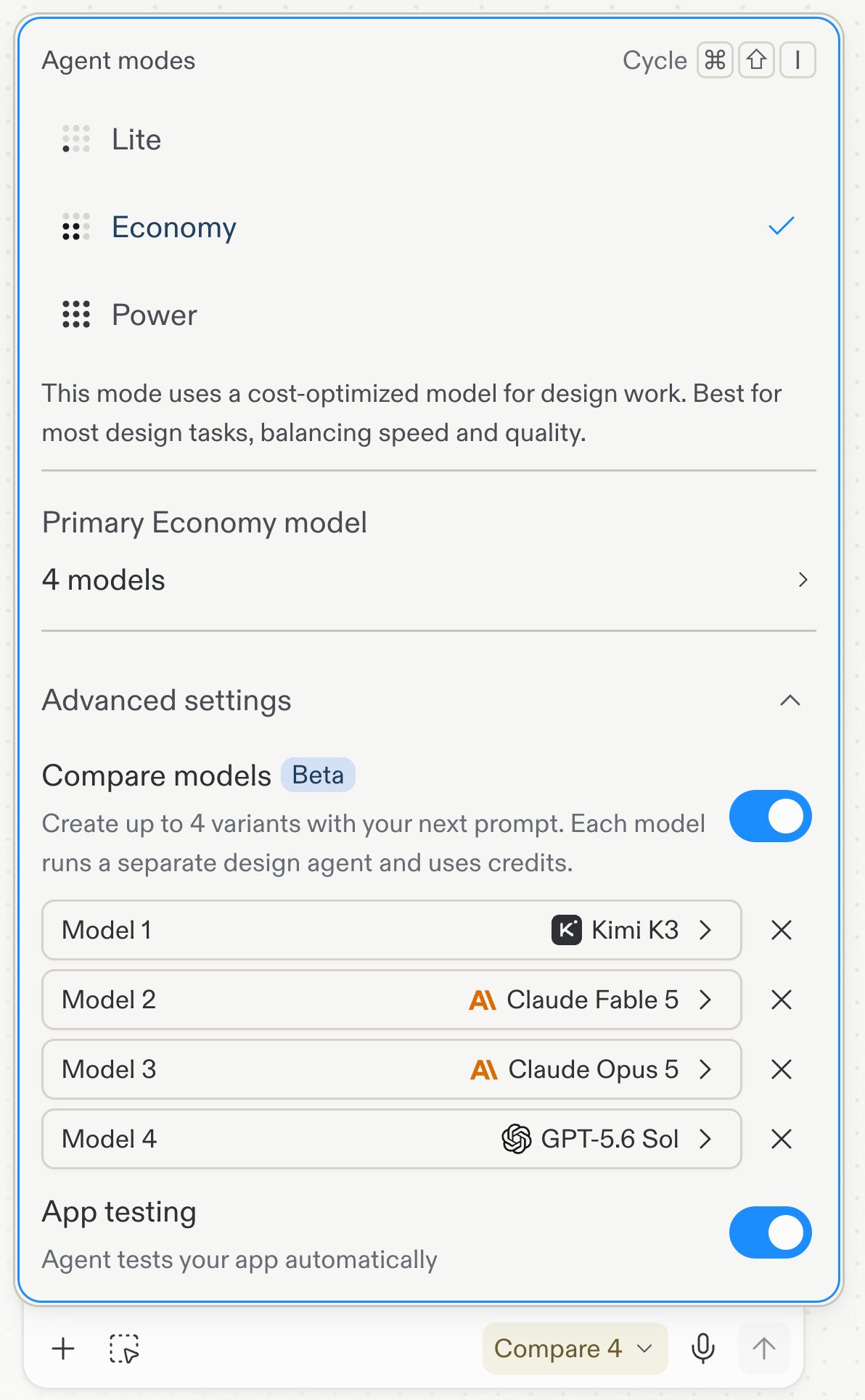
Four models selected for comparison, with the send button reading Compare 4.
Each model in a comparison runs a separate agent and uses credits, so a
Compare 4 run costs about as much as four single runs.
Model selection in Build and Design
Build and Design keep separate model selections. This page covers selecting a model for Agent builds. To explore visual directions with Design’s model selector, see Explore with different models.Related
- Agent modes: Choose between Free Mode, Power Mode, and Max Mode
- Explore with different models: Use models to explore Design directions