

Features
You can customize your Replit App creation experience with these settings categories:- Theme customization: Select between light and dark themes for the Project Editor
- Code intelligence: Configure AI-powered features that enhance your app creation experience
- Editor preferences: Adjust how the file editor behaves and appears
- Notification controls: Manage alert preferences
- Accessibility options: Make Replit work better for users with specific needs
- Keyboard shortcuts: Set key combinations to run common actions and navigate the GUI
Usage
How to access User Settings
How to access User Settings
From the left Tool dock:
- Select
 All tools to see a list of Project Editor tools.
 - Select
 User Settings.
- Select the
 magnifying glass at the top to open the search tool
 - Type “User Settings” to locate the tool and select it from the results.
File editor preferences
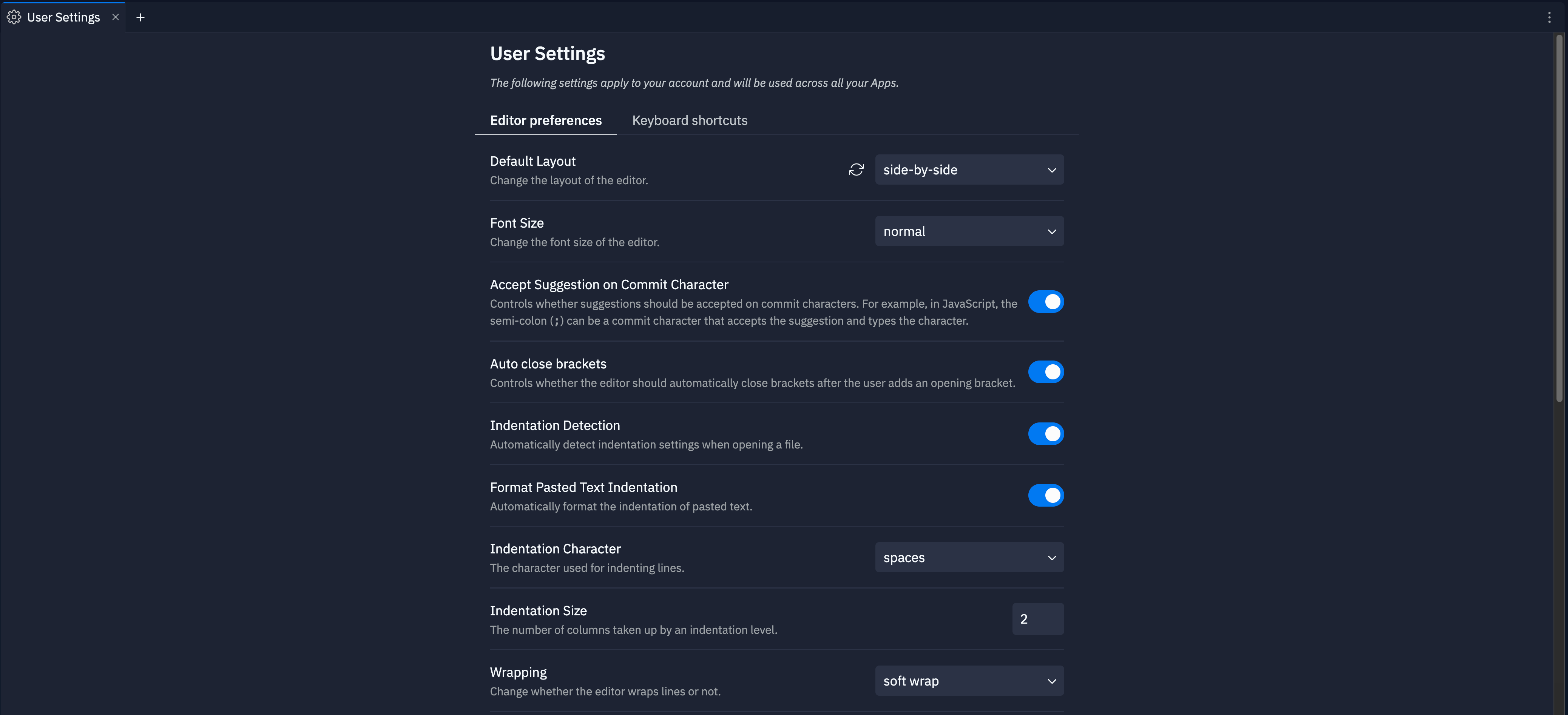
Control the file editor’s appearance and behavior using the following settings:- Font size: Adjust text size for readability
- Auto close brackets: Automatically insert closing brackets when you type an opening bracket
- Indentation detection: Automatically detect indentation settings when you open a file
- Format pasted text indentation: Reformat pasted code to follow proper indentation
- Indentation character: Choose between spaces and tabs for indenting code
- Indentation size: Set the number of columns for each indentation level
- Wrapping: Configure line wrapping behavior
- Minimap: Include a navigable code overview in a sidebar
- Multiselect modifier key: Set the keyboard modifier for multi-file selection
- Filetree Git status: Display Git status indicators in the file tree
Code intelligence
Configure AI-powered tools using the following settings:- Semantic tokens: Use enhanced syntax highlighting powered by language servers
- AI code completion: Add inline code suggestions as you type
- Accept suggestion on commit character: Automatically accept code suggestions by typing certain characters
Shell and Preview preferences
Customize the Shell and Preview tool behavior:- Shell bell audible indicator: Play sounds when the Shell tool encounters issues
- Automatic preview: Open the Preview tab automatically when a server becomes available
- Forward opened ports automatically: Configure handling newly detected ports
Notifications
Manage the following notification settings:- Agent audio notification: Play sounds when Agent requests feedback
- Agent push notification: Receive mobile push notifications when Agent requests feedback
Production alerts
Production Alerts is a separate email notification setting that keeps you informed about the health of your published apps. It is independent of product and marketing emails, so you stay updated on what matters without extra noise. Turn on Production Alerts to receive emails about the following:- Uptime incidents: Get notified when a published app goes down or has trouble staying online.
- Security vulnerabilities: Get notified about weaknesses found in the software your app depends on, so you can fix them before they cause problems.
- Model updates: Get notified when a language model your app uses changes or needs your attention.
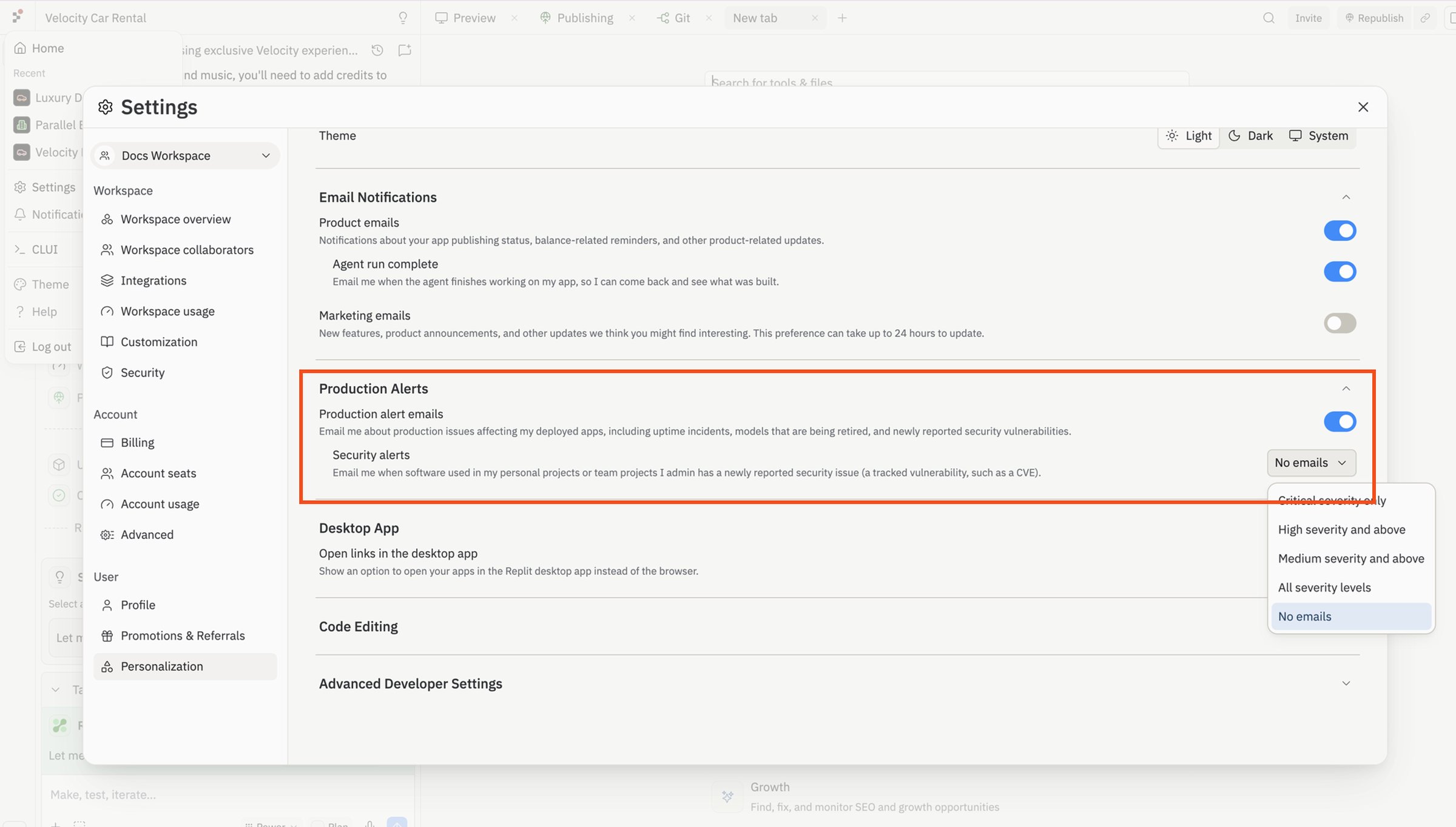
- Open Settings from your account menu.
- Select the Personalization tab.
- Scroll to the Email Notifications section to find Production Alerts.
Accessibility
You can customize the following accessibility setting:- Accessible terminal output: Enable screen reader compatibility for the Shell and Console tools
Keyboard shortcuts
To access the keyboard shortcut preferences, select the Keyboard shortcuts tab in the User Settings tool. You can search for key combinations using the following methods:- Name: Type the name or description of the keyboard shortcut in the search field
- Key combination: Select the
 and enter the key combination
- Add: Select Add shortcut
- Update: Select the
 pencil icon
 - Remove: Select the
 trash icon