

The publishing stages
Publishing runs through five stages and usually takes a minute or two. You can follow the progress bar in the Publishing tool, select View logs for detail, or select Cancel to stop a publish in progress.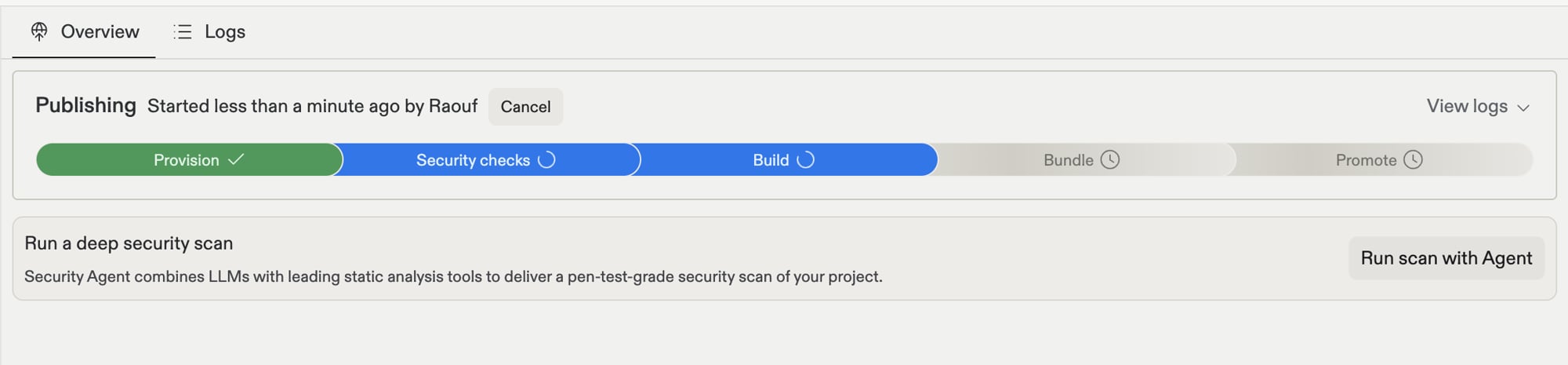
- Provision: Replit sets up the cloud resources your app will run on, such as servers and your production database.
- Security checks: Replit scans your app for security problems, such as unsafe dependencies or exposed secrets, before it goes live.
- Build: Replit turns your project into the production version of your app, the optimized form that runs on the web.
- Bundle: The built app is packaged into a single, ready-to-run unit.
- Promote: Replit prepares the new version alongside the current one, then switches your URL over to it.
Publishing covers your whole project: every artifact in it, such as your app, slide decks, and documents, is published together.
What's happening behind the scenes
What's happening behind the scenes
For builders who want the technical picture: Provision allocates the deployment infrastructure for your chosen deployment type and region. Security checks run dependency and code scans, and can block the publish when critical vulnerabilities are found, depending on your security settings. Build executes your build command and compiles assets for production. Bundle packages the build output into a deployable image. Promote performs the cutover: the new version starts serving at your URL, replacing the previous deployment.
Update your app
Select Publish again after making changes. Your app updates at the same URL, and visitors get the latest version the next time they load it. You never need to share a new link.Manage your live app
The Publishing tool is also where you manage the app after it’s live:- Monitor its health: Track whether your app is online, view logs, and check resource usage. Learn more about monitoring.
- See who’s visiting: Request and traffic charts live in Monitoring; visitor and user insights live in the Growth pane.
- Change who has access: Unpublish, choose a different access option, and publish again. Learn more about app access.
- Connect a domain: Give your app a custom web address. Learn more about custom domains.
Next steps
- Publish your app: The full publish pane reference.
- Monitoring: Logs, analytics, and uptime checks.