

- Internal tools
- Apps in the beta testing phase
- Apps that access sensitive information
Access options
- Public: Anyone on the internet with the URL can use your app.
- Password protected: Anyone on the internet with the password can use your app. Visitors enter a shared password. They don’t need a Replit account.
- Workspace only: All admins, members, and viewers in your workspace. Replit marks this option as Private.
- Invite only: Only you, admins, invited groups, and invited users. Replit marks this option as Private. This is the most restrictive option.
With the two Private options, visitors without access are prompted to sign in through Replit before they can view the app. In a personal workspace where you’re the only member, Workspace only and Invite only behave the same way. The distinction matters when you work in a shared workspace with collaborators.
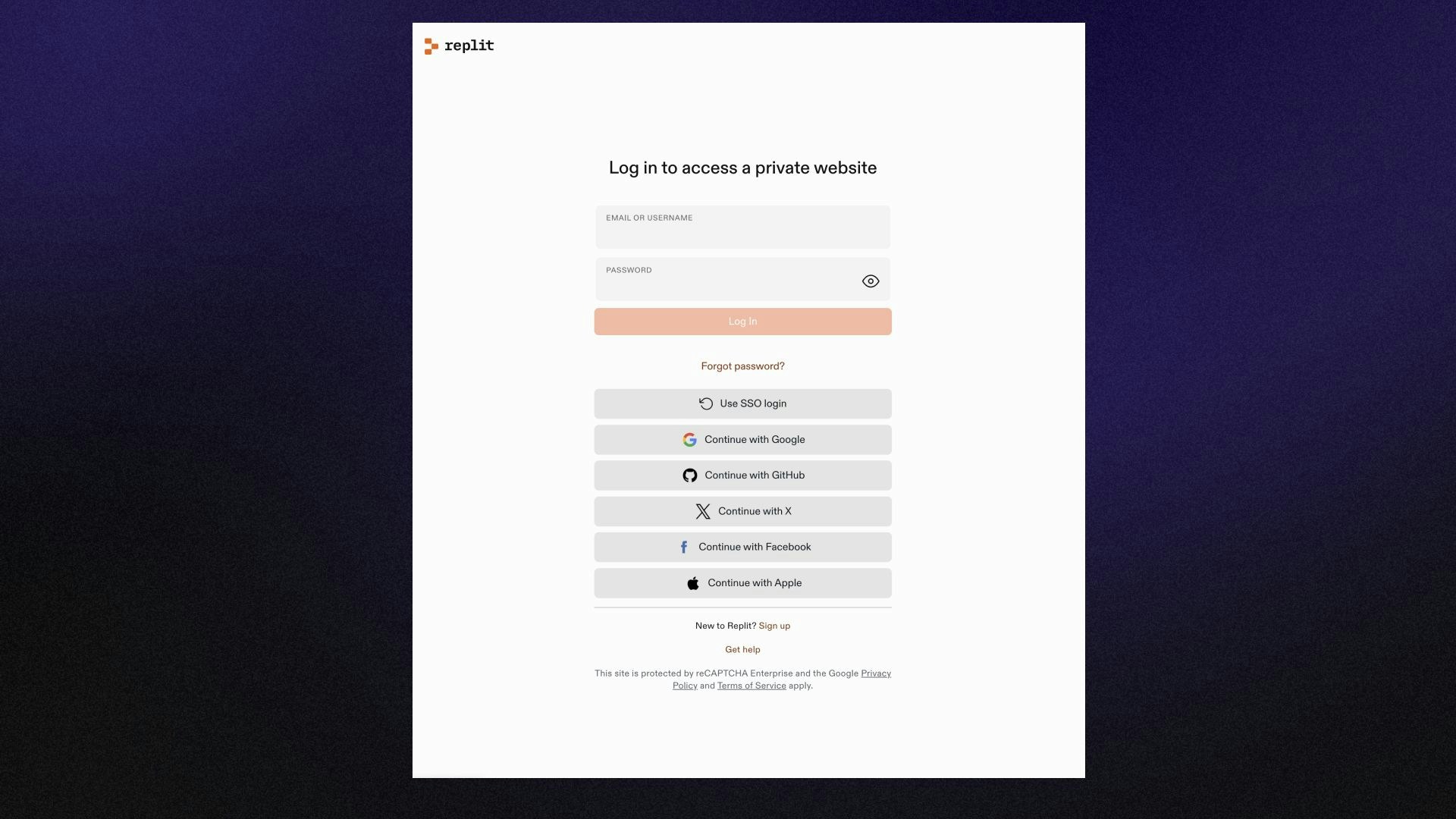
Sign-in page visitors see on a private app
Choose access when you publish
- Select Publish in the top-right of the Project Editor, or open Publishing under Replit Cloud in the Tools pane.
- Under Who can access your app, select Public, Password protected, Workspace only, or Invite only.
- Select Publish.
Scheduled Deployments don’t have access options because they don’t serve a web page.
Change access for a live app
Changing access requires unpublishing your app first. Unpublish it from the Publishing tool, choose a different option under Who can access your app, and publish again.
Manage who’s invited
With Invite only, you grant access to individual users or groups from your workspace’s access management. Workspace admins always have access. Learn more about access management.Workspace admins can restrict access options for their organization, including turning off password-protected publishing.
Next steps
- Publish your app: Review the full publish flow.
- Access management: Manage users and groups in your workspace.