

Turn on the feedback widget
- Open the Publishing tool by selecting Publishing under Replit Cloud in the Tools pane, or select Publish in the top-right of the Project Editor.
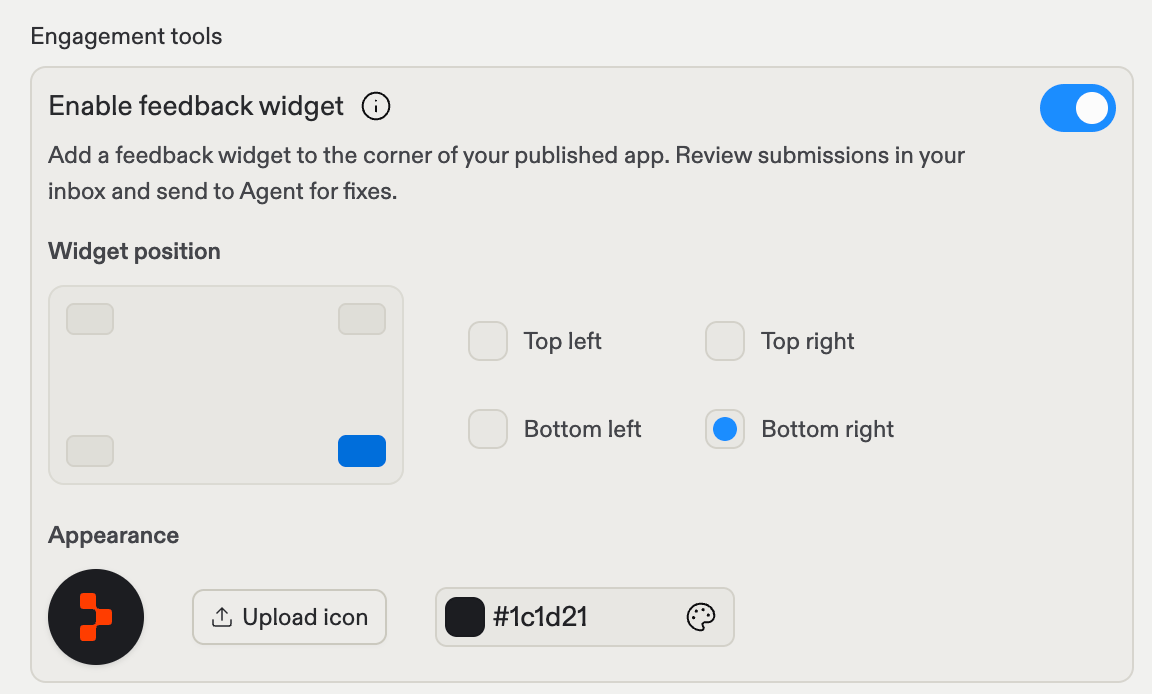
- Under Engagement tools, turn on Enable feedback widget.
- Select Publish. The widget appears on your published app.
Position and appearance
When the widget is enabled, two settings appear:- Widget position: Choose which corner of your app the widget sits in: top left, top right, bottom left, or bottom right. The default is bottom right.
- Appearance: Upload your own icon for the widget button and pick its background color, so it matches your app’s look.
Review and act on feedback
Submissions from your visitors arrive in your inbox. From there you can:- Read each submission to understand what visitors ran into.
- Send a submission to Agent for fixes. Agent picks up the feedback as a task and proposes changes to your app.
Turn it off
Turn off Enable feedback widget in the Publishing tool and publish again. The widget disappears from your published app.Next steps
- Publish your app: The full publish pane reference.
- Monitoring: Watch your app’s health and traffic.