

Features
CLUI provides powerful command-driven interactions across three different contexts in Replit:- Settings management: Manage your settings, view warnings, and restore deleted Replit Apps
- Quick navigation: Move between your Replit Apps and access common features via shortcuts
- Workspace operations: Find files, search code, and access tools within your development environment
Usage
Account CLUI
The Account CLUI helps you manage your settings, teams, and deleted Replit Apps. How to access: Navigate to the CLUI page, type in the input box to search for a command, and press Enter to execute it.Account commands
Account commands
Type
account to manage your settings:- view-warns: View warnings you have been issued
- change-username: Change your username (can only be done once)
Trash commands
Trash commands
Type
trash to manage deleted Replit Apps:- restore <title>: Restore a deleted Replit App by its title (restores the most recently deleted if multiple exist with the same name)
- view: View your most recently deleted Replit Apps
Team commands
Team commands
Type
team to manage your teams:- view: View the members of a team you’re in by its username
- fork-repl-to-project: Fork an existing Replit App to create a Team Project
Clear command
Clear command
Type
clear to clear the screen of all past commands you’ve executedShortcuts CLUI
The Shortcuts CLUI provides quick access to common Replit features from any page.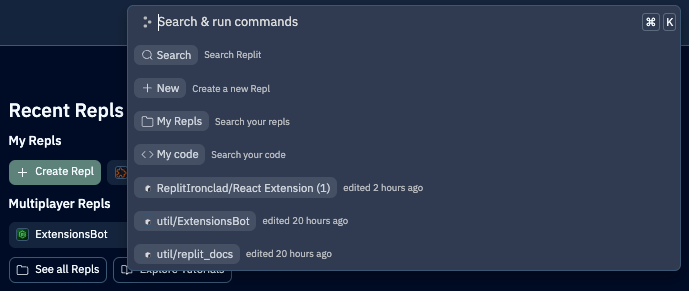
Available commands
Available commands
- Search: Search Replit for Replit Apps, Templates, Code, People, and more
- New: Create a new Replit App
- My Replit Apps: Browse and navigate to your Replit Apps
- My Code: Search through the code in all of your Replit Apps
Workspace CLUI
The Workspace CLUI helps you perform operations, access tools, find files, and search your code while working in a Replit App.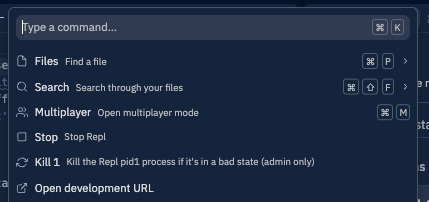
Common operations
Common operations
- Find files: Quickly locate files in your project
- Search code: Find specific code snippets across your files
- Access tools: Open any tool or panel available in the Workspace
- Run commands: Execute workspace-specific commands